
- Training
- Service
- Promotion
- Schedule
- Testing Center
- News
- Contact
10/21/2022


Access the Excel and PowerPoint file that I use in the video:

The actual embedding of the Excel file into PowerPoint is easy. It happens when we paste an element of the Excel file into a PowerPoint slide using either of the first two Paste Options in the Paste menu.

For example, the chart shown in the PowerPoint slide below is actually pasted from an Excel file. The chart was built in Excel using data from within the workbook. All you see in PowerPoint is the chart, but behind the scenes, PowerPoint is storing the entire workbook in the file because I chose the first Paste Option: “Use Destination Theme & Embed Workbook.”

This does not link your PowerPoint chart to your existing Excel file. Instead, it creates a copy of the Excel file and embeds it into the PowerPoint file. So if you make a change to the original workbook, the PowerPoint chart will not reflect it.
That doesn't mean you can't make changes to the embedded chart. If you want to edit the data in the PowerPoint chart, you can do so. With the chart selected, go to the Chart Design tab and select Edit Data in Excel from the Edit Data dropdown.

This will open an Excel window that looks just like the original Excel workbook, but is actually the embedded copy. From there, any changes you make will show on the PowerPoint slide.
Something to note is that formatting changes on the chart should be made to the chart directly in PowerPoint. But data changes are to be done in the embedded Excel file.
If you want to paste a range into PowerPoint instead of a chart, you copy the range and then choose the Paste Option that says Embed (the third option).
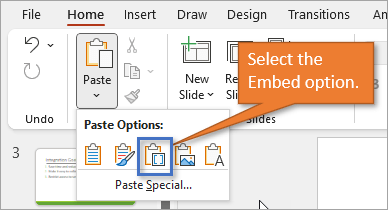
When you paste the range into PowerPoint, it looks and acts like a picture that you can move and resize. However, it also has the Excel workbook embedded in it.
To edit the range, all you have to do is double-click on the range image and it opens up a pane the size of the image that is like a window into your embedded Excel file. You can navigate and resize the range directly from that window.


Source: excelcampus.com

12/11/2025


